Desktop program for Windows

The weekly attendance check,
now handled by 출석지기 (Chulseokjigi)

From member management and group assignments to worship and GBS attendance and attendance-rate statistics — everything a young adult, cell or small-group ministry needs, in a single program.

Free for up to 10 members

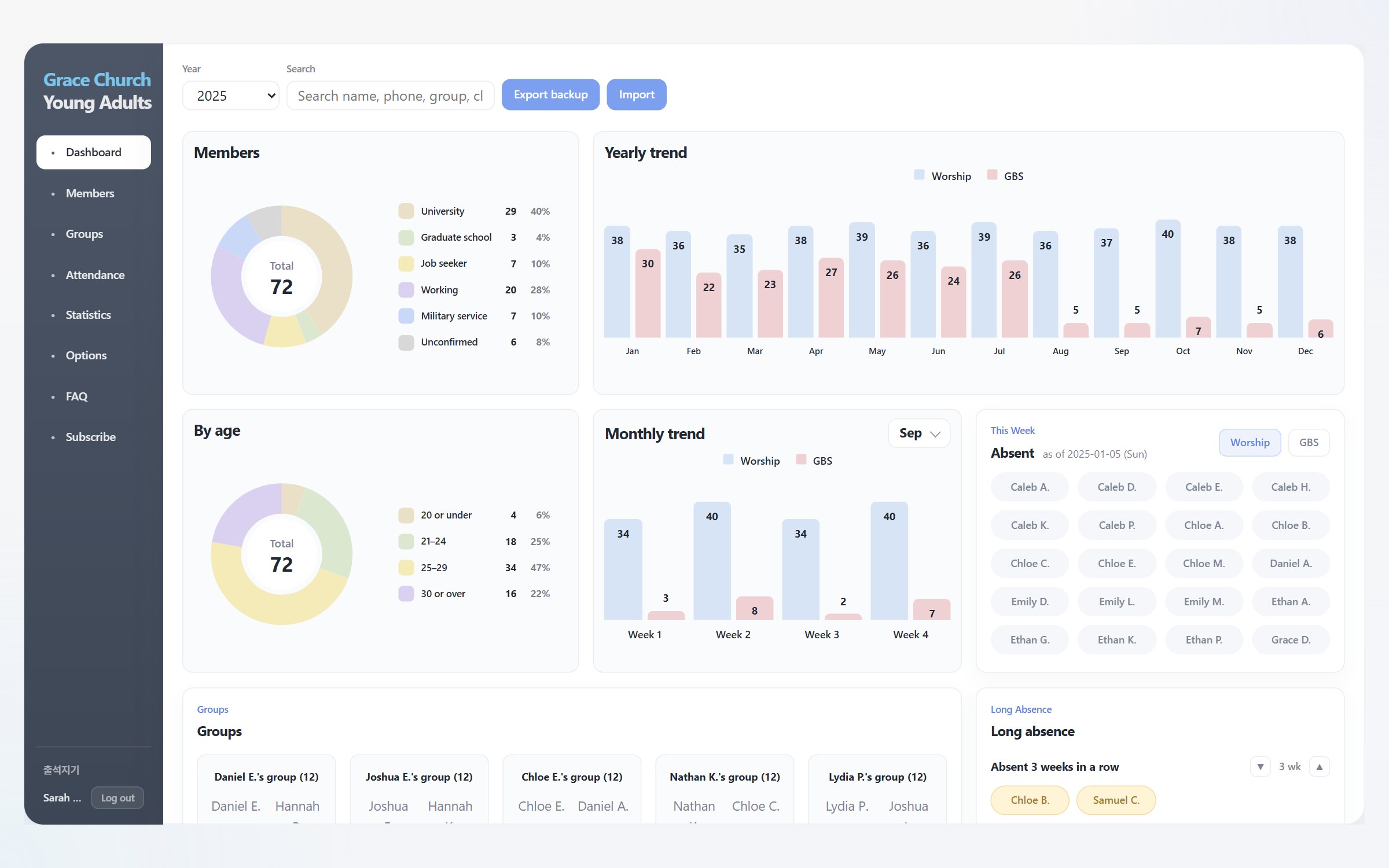
출석지기 dashboard: member overview, yearly attendance trend and this week's absentees
WHY 출석지기

Is attendance still this much work for you?

Are you still keeping attendance on paper, or in Excel or a spreadsheet?
Do you struggle every time you calculate each member's attendance rate by hand or fix and add Excel formulas?
Or have you been looking for a good attendance program made for churches?

Try 출석지기.
출석지기 takes this repetitive manual work off your hands.
From present/late tracking to attendance-rate calculation and spotting long-term absentees — manage everything you need reliably and conveniently in one program!

FEATURES

Only the screens your ministry needs, nothing more

Organized into eight screens that follow the real flow of a young adult ministry.

01 · Dashboard

The whole picture at a glance

Right after you log in, the dashboard shows your member makeup, age distribution, yearly and monthly attendance trends, this week's absentees and long-term absentees — all on one screen.
No more pulling and organizing statistics before every meeting.

Dashboard screen
02 · Members

Including the details church ministry needs

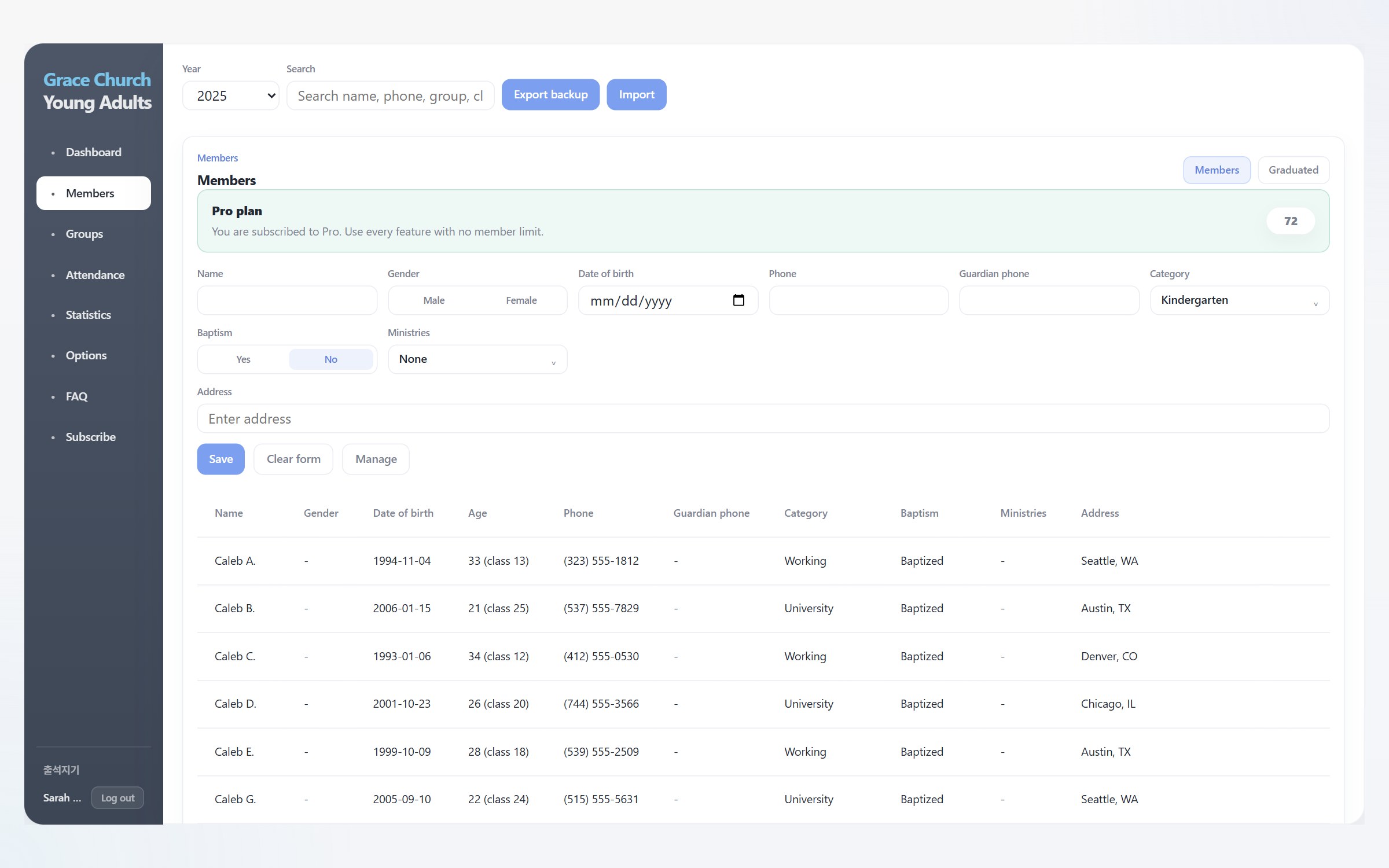
Beyond names and phone numbers, keep track of baptism, ministries, military service status for men and address — everything church ministry needs, in one organized place.
Just type a name, phone number or group name into the search box to find someone instantly.

Member management screen
03 · Groups

Group changes every semester, made simple

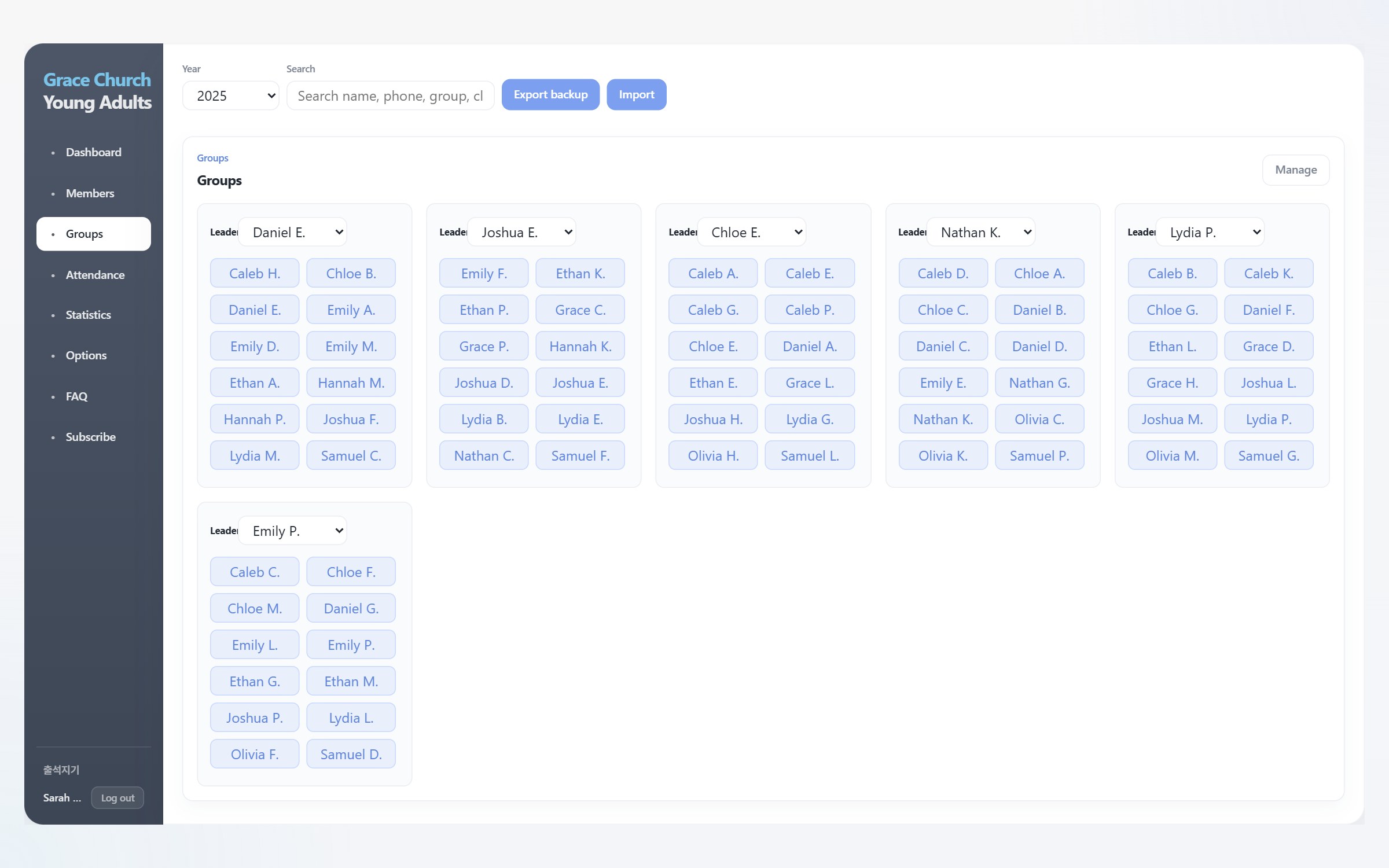
Just choose a leader and assign members — that's it.
Pick the leader from a drop-down list.
Assign members with a single click on their name.
Once groups are set, they automatically appear on the attendance and statistics screens, so you never do the same work twice.

Group assignment screen
04 · Attendance

Group by group, one click at a time

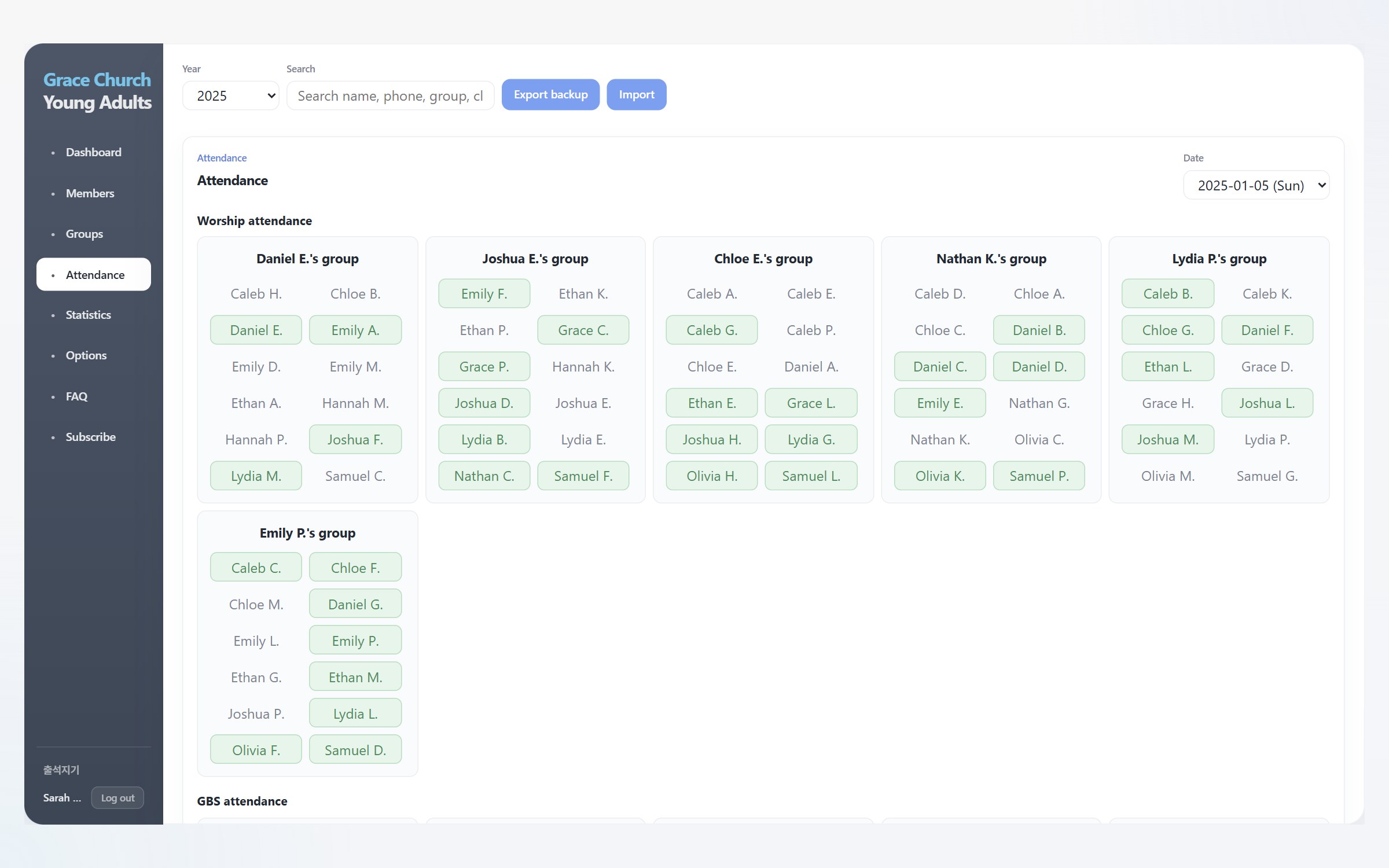
Check worship and GBS (small group) attendance group by group.
Pick a date and click names — that week's attendance is recorded instantly, saving the time you used to spend flipping through a roll book.
Set an on-time cutoff in Options, and names clicked after that time are automatically marked as late.

Attendance entry screen
05 · Statistics

From attendance rates to long-term absentees

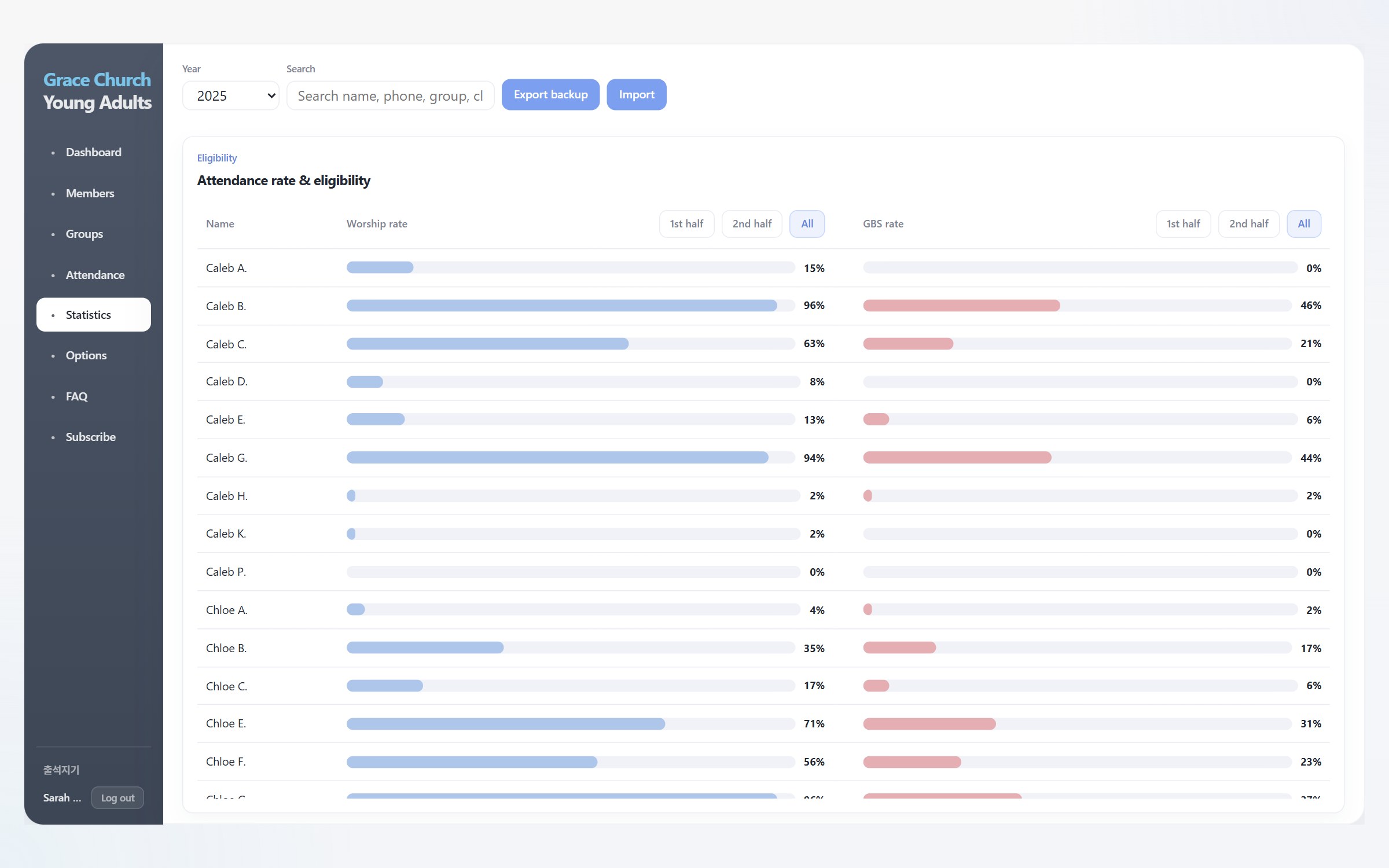
Attendance rates for the first half, second half and the whole year are calculated automatically for each member, with worship and GBS side by side for easy comparison.
Members who haven't come for several weeks stand out right away, so you never miss someone who needs a call.

Automatic — no Excel formulas
Attendance statistics screen
06 · Options

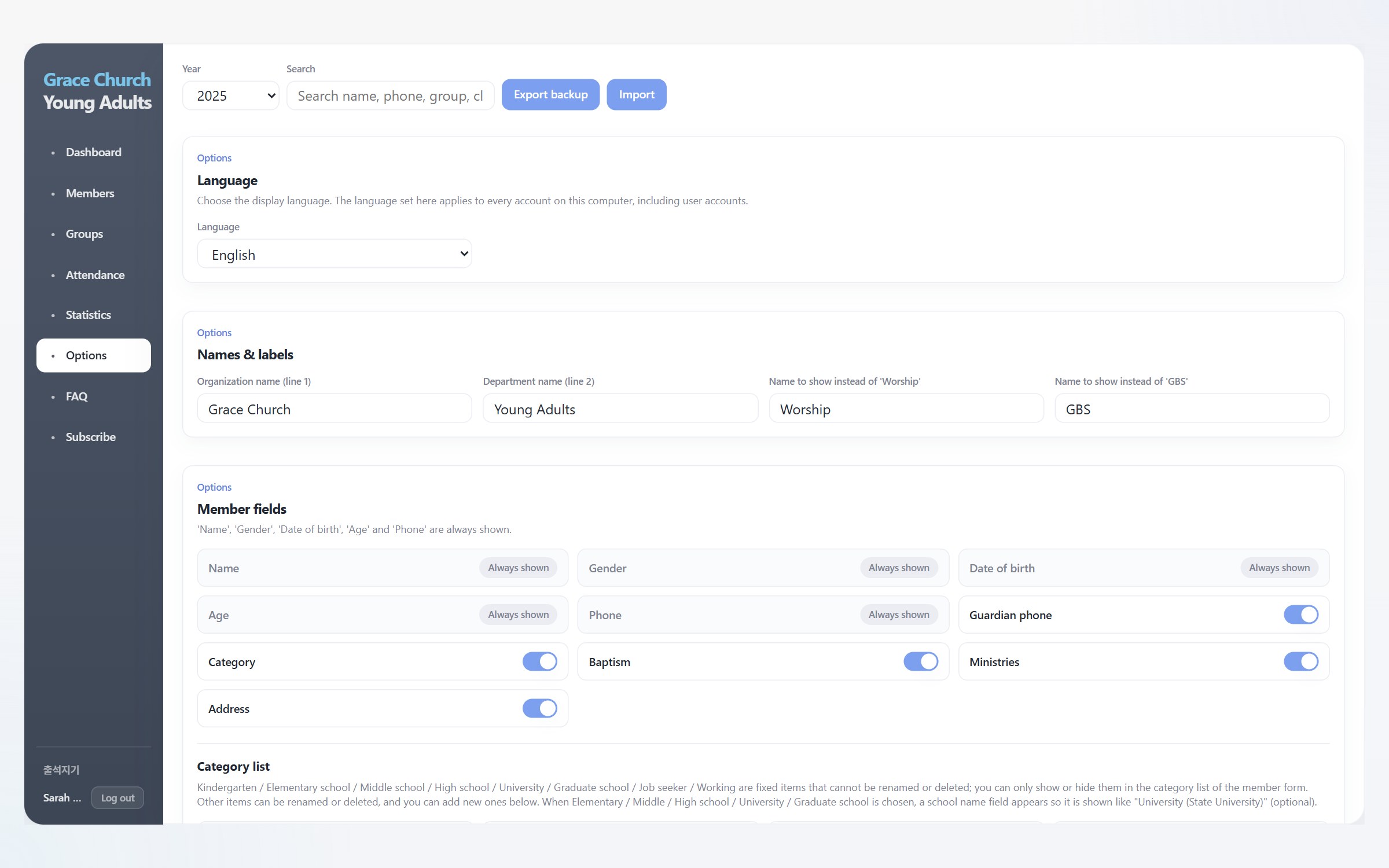
Every church has its own rules — set them in Options

Rules that differ from church to church — like scholarship criteria or voting-right requirements — can be set directly in Options.
Members who meet the conditions are automatically marked with an O.
Adjust everything to fit your church: the church and department name, worship labels, which member fields to show, the ministry list and the graduation age.
You can also separate admin and user accounts so only admins can open the Options screen.

Your church's way
Options screen
07 · Options

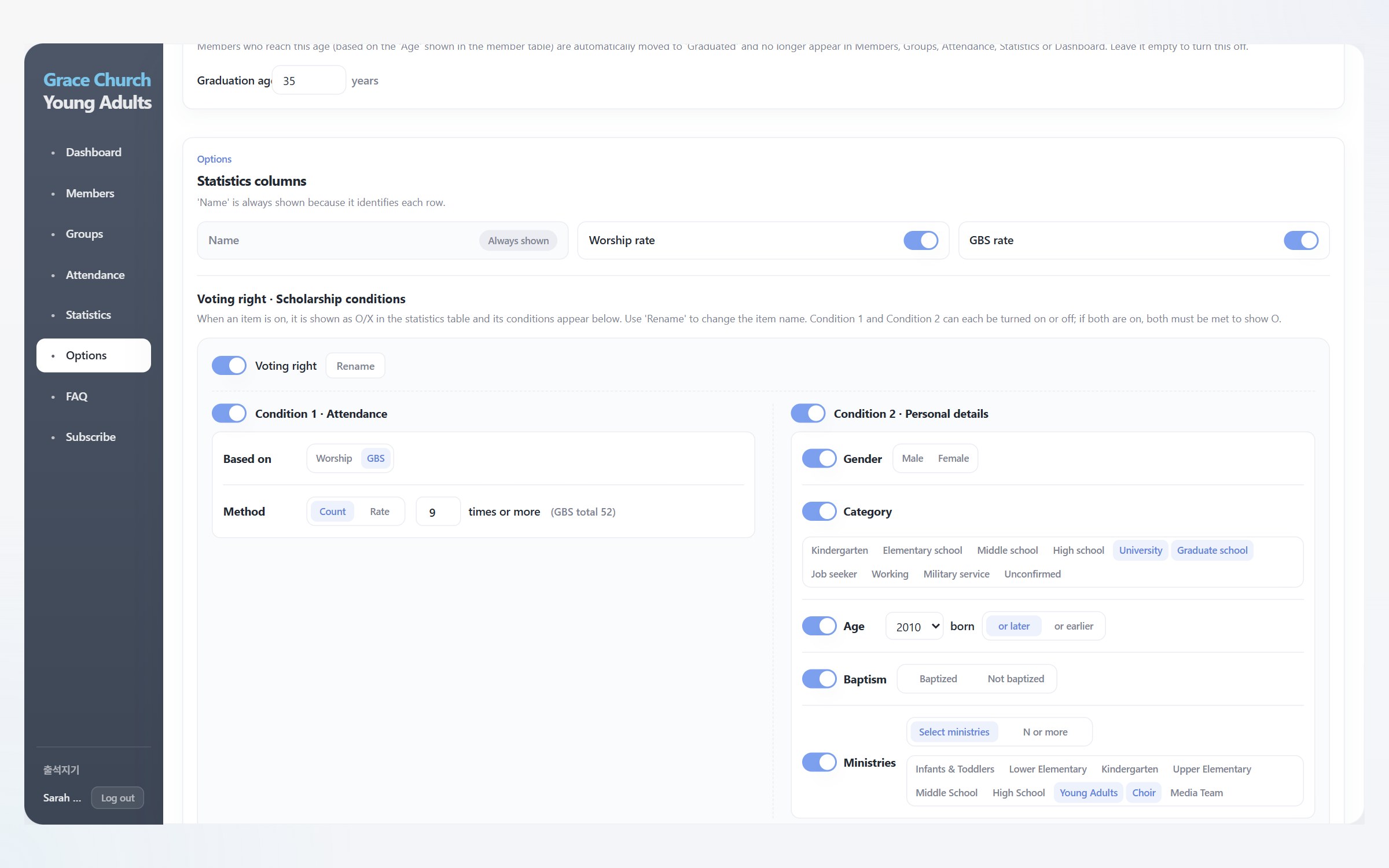
Build conditions from just the items you need

Turn on only the conditions you want — attendance count or rate, plus gender, category, age, baptism and ministries — and combine them freely.
Condition 1 and Condition 2 can each be turned on or off; with both on, a member must meet both to be marked O.
You can also rename the items themselves (e.g. Voting right, Scholarship).

Fine-grained conditions
Voting right and scholarship condition settings
08 · Options

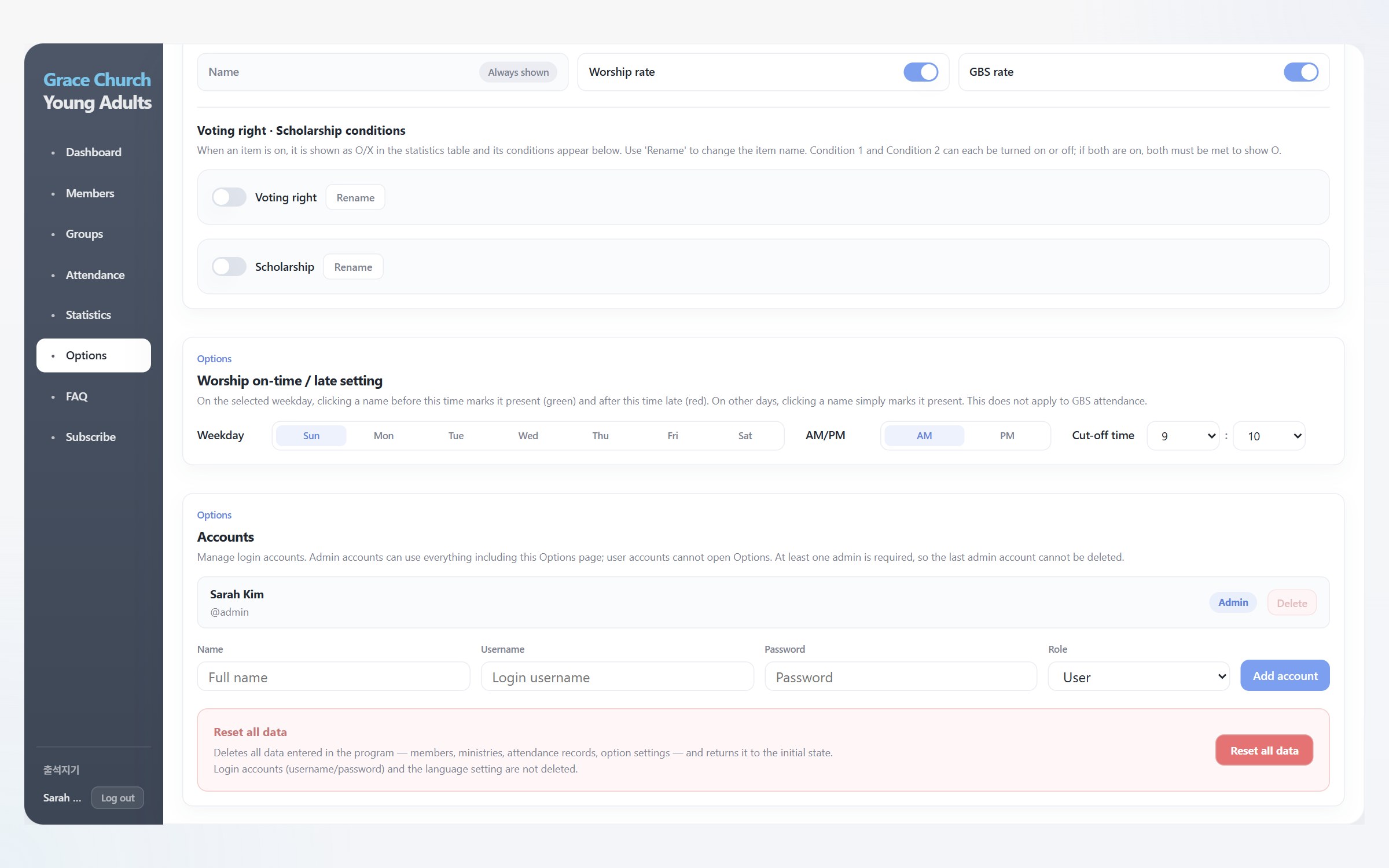
Late cutoff and account management in one place

Set a weekday and time, and any attendance clicked after that time is automatically marked as late.
Login accounts can be added or removed as admins or users, and only admins can open the Options screen.
When needed, you can also reset all members, ministries and attendance records at once.

Thoughtful down to daily operation
Late cutoff setting and account management screen
DATA & SECURITY

Your members' personal information, kept safe

Because this is information your church manages, where and how the data is stored matters.

01

Never sent to an outside server

출석지기 is an installed program.
Member information and attendance records are stored only on the computer where the program is installed and are never sent to a separate server.

02

Separate admin and user accounts

Login accounts can be split into admins and regular users, so only the leaders in charge can change settings.

PRICING

Sized for you, without the burden

Start free for small cells and groups, or with the Pro plan for larger young adult ministries.

Free
No cost

Great for small cells and groups.

  • Register up to 10 members
  • Members · Groups · Attendance
  • Full dashboard and statistics
  • Export and import backups
Start for free
Pro
$4.99 / month

Great for large young adult ministries and parishes.

  • Register unlimited members
  • Everything in the Free plan
  • Plenty of room for many groups and ministries
  • Keep graduated members without worry
Start with Pro
FAQ

Frequently asked questions

Can I use it on several computers together?

The current version stores data only on the computer where the program is installed.
To move data to another computer, use Export backup on one computer and Import that file on the other.

Can I use it on a Mac?

출석지기 is currently available for Windows PCs.

Can I switch from the free version to Pro later?

Yes. Start with Free, and when you have more than 10 members you can switch to the Pro plan at any time and keep going with no member limit.

What is the difference between admin and user accounts?

Admins can use every feature, including the Options screen. Users can use Members, Groups, Attendance and Statistics — everything except Options. Accounts created with "Create account" on the login screen always have user permissions; to add a new admin account, an existing admin must add it in Options > Accounts.

Can I hide fields I don't need (e.g. address)?

Yes. In Options > Member fields you can turn each field on or off. A field that is turned off is hidden from both the table and the member registration form. "Name" is always shown because it identifies each member.

Can I rename items and set my own conditions?

Yes. In Options > Statistics columns, use the Rename button to change names such as "Voting right" or "Scholarship". Below that, turn the attendance condition (worship/GBS attendance count or rate) and the personal-details condition (gender, category, age, baptism, ministries) on or off and set the values you want. With both conditions on, a member must meet both to be marked O.

Can I change labels like "Worship" and "GBS" to fit our church?

Yes. In Options > Names & labels you can freely change the organization name, department name, and the names used instead of "Worship" and "GBS".

I want the ministry list to match our church's organization.

Turn on "Ministries" in Options > Member fields and a ministry list manager appears below it, where you can add, rename and delete ministries. Renaming a ministry also updates the records of the members registered to it.